 GaⅤin.com by Gavin W.
If you run local Large Language Models on a Windows workstation, you have undoubtedly encountered the standard community advice for sluggish performance: “Disable Microsoft Defender,” “Add blanket antivirus folder exclusions to C:\models,” or “Just wipe your drive and install Linux.”
While running models under Linux has its merits, many of us rely on Windows 11 for daily work, multi-GPU orchestration, or creative software while hosting local LLM inference engines in the background. Maybe the company provides a Windows laptop, or maybe you just want to play with LLMs locally. But the frustrating reality of Windows has always been the “Defender Tax”—a mysterious multi-second freeze when a 20GB or 70GB model binary is loaded from an NVMe SSD, accompanied by erratic latency spikes during inference.
When Microsoft introduced Windows Dev Drive—a dedicated storage architecture built on the Resilient File System (ReFS) coupled with Microsoft Defender Antivirus Performance Mode—it was heralded as a massive win for git clones, node_modules, and C++ builds. It hasn’t gotten much fanfare though, and not many users seem to know about it.
Curiously, no one in the AI engineering community seemed to have answered the obvious question:
Can Windows Dev Drive and ReFS improve local LLM inference performance, cold starts, and NVMe model streaming?
This has real potential to give free improvements to many casual users, especially with newer architectures that leverage NVMe storage, such as Colibri. To answer this scientifically, I built an open-source benchmarking harness and conducted an empirical study comparing Standard Windows NTFS, VHDX Dev Drive, and Native Bare-Metal Physical Dev Drive on the exact same physical Gen4 NVMe drive.
Here is what my empirical data reveals: the realistic gains, the hype to ignore, and why filesystem architecture will become increasingly critical as models adopt on-demand MoE and N-gram disk paging.
Real Gains vs. Hype
Before diving into the numbers, let’s establish a strict reality check. There is a lot of snake oil in PC benchmarking and wonder-solutions out there, so here is what Dev Drive does not do:
- It does NOT increase token generation speed for models that fit entirely in VRAM. Once an 8B or 14B model is fully loaded into GPU memory, the filesystem is not touched. Token generation on my RTX 5060 Ti was identical across NTFS and Dev Drive. Anyone claiming Dev Drive gives you “10x faster local chat” on resident models is measuring server startup time, not inference throughput.
Where Dev Drive genuinely excels is in eliminating kernel-level I/O friction:
- Cold Time-To-First-Token (TTFT) Drops Dramatically on Large Models:
- On Qwen 3.8 Flash Next (76.3 GB), cold TTFT dropped from 18.91 seconds on NTFS down to 8.07 seconds on Native Physical Dev Drive—shaving 10.84 full seconds (-57.3%) off the initial response.
- On GPT-OSS-20B (11.3 GB), Dev Drive completely eliminated a 4.5-second cold startup stall caused by synchronous antivirus scanning, dropping cold TTFT down to 332 ms.
- Inference Jitter Reduced by 33.7x:
- In steady-state repeated runs, NTFS exhibited an erratic standard deviation of ± 29.35 ms with latency spikes reaching 361 ms due to periodic antivirus filter driver interruptions.
- Native Physical Dev Drive delivered near-zero variance (± 0.87 ms, a tight 2.1 ms spread across all runs).
- Random 4K IOPS Boost (+6.5% to +13.7%):
- Micro-benchmarks confirmed Dev Drive delivers 21,982 to 22,461 IOPS vs NTFS’s 20,644 IOPS, accelerating non-sequential hash lookups for models using memory-mapped N-gram or Engram lookup tables.
- Sustained Throughput Under Heavy NVMe Paging (+5.17%):
- In an artificial memory-clamp stress test forcing over 13.7 million page faults directly against NVMe storage, Dev Drive sustained 11.62 tok/s vs NTFS’s 10.26 tok/s.
- The Enterprise Security Win:
- Unlike disabling antivirus or adding risky folder exclusions (which create malware blind spots and violate corporate compliance), Dev Drive’s Defender Performance Mode preserves 100% active antivirus protection by shifting inspection from synchronous inline blocking to asynchronous background scanning.
Test Rig & Hardware Parity
To eliminate hardware discrepancies, SSD controller throttling, thermal variance, or PCIe bus lane differences, all three filesystems were hosted on the exact same physical drive:
- CPU: Intel Core i7-14700F (8 P-Cores pinned via
-t 8 -tb 8, 12 E-Cores idle) - RAM: 64 GB DDR5-6000 CL36 (81.8 GB/s measured STREAM read bandwidth)
- Primary GPU: NVIDIA GeForce RTX 5060 Ti (16 GB VRAM, Blackwell
sm_120, isolated via$env:CUDA_VISIBLE_DEVICES = "0") - Secondary GPU: Another GPU was dedicated to Windows 11 DWM desktop display so GUI operations never touch compute VRAM
- Physical Drive Under Test: Verbatim Vi7000 4TB PCIe 4.0 NVMe SSD (Disk 3)
[ Disk 3: Verbatim Vi7000 4TB PCIe 4.0 NVMe ]
├── Partition 2 (D:\): Standard NTFS Baseline (Active Real-Time Defender)
├── File Container (Z:\): 500 GB Dynamic VHDX ReFS Dev Drive (Performance Mode)
└── Partition 3 (F:\): 400 GB Native Bare-Metal ReFS Dev Drive (Performance Mode)
By benchmarking D:, Z:, and F: on the identical flash NAND, each delta reflects only filesystem and kernel filter driver architecture.
The Three Storage Topologies: Why NTFS Stalls
To understand why Dev Drive behaves differently, we have to look under the hood of the Windows I/O subsystem:
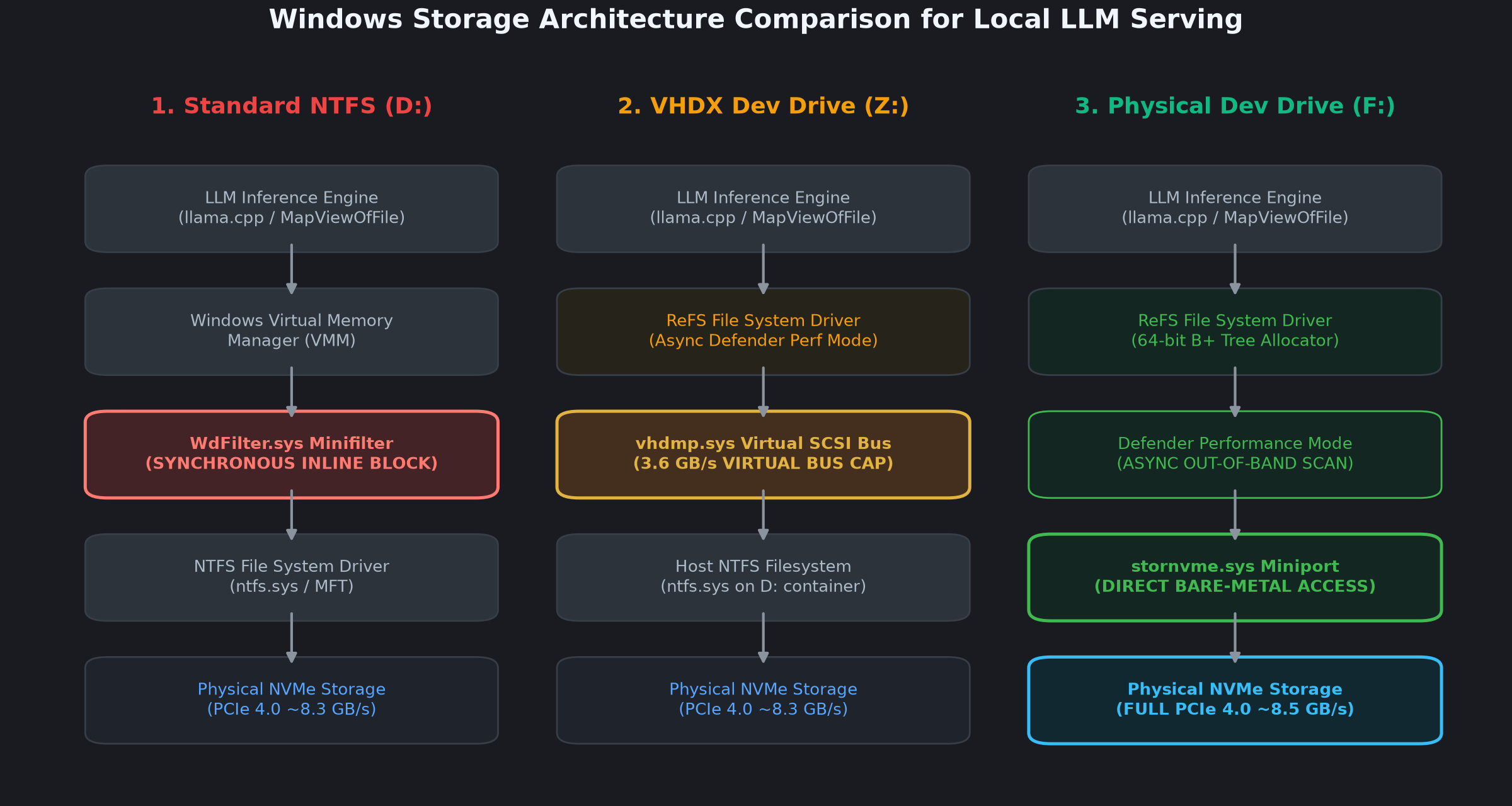
1. The NTFS “Defender Tax” (WdFilter.sys)
Under standard NTFS, whenever a process calls CreateFile or touches memory pages mapped via mmap (MapViewOfFile), the I/O Request Packet (IRP) passes through the WdFilter.sys antivirus minifilter driver. The calling thread is synchronously blocked while Defender calculates file hashes and scans headers.
You can think of it like a security check at the airport; everyone is stopped and checked before proceeding. It can be done really quickly if you’re only carrying hand luggage, but if you’re carrying a lot of luggage, it slows things down.
When you boot a 76 GB model like Qwen 3.8 Flash Next, the operating system faults hundreds of thousands of pages into memory. On NTFS, every batch of faults must negotiate inline filter checks, causing severe I/O serialization and resulting in an 18.9-second freeze.
2. The VHDX SCSI Bus Trap
Microsoft’s documentation encourages creating Dev Drives using virtual disk containers (.vhdx) because it’s quick and doesn’t require repartitioning.
However, my Direct I/O micro-benchmarks revealed a critical flaw: the Windows Virtual Hard Disk miniport driver (vhdmp.sys) translates virtual SCSI LBAs into host NTFS file offsets, capping single-threaded sequential reads at ~3,674 MB/s (a 55.8% throughput penalty!).
3. Native Physical Dev Drive (ReFS)
When formatted on a dedicated physical partition, Dev Drive pairs the high-performance ReFS 64-bit B+ tree allocator directly with stornvme.sys, completely bypassing the virtual SCSI stack.
Sequential throughput is restored to full PCIe 4.0 speed (8,477.83 MB/s), while Defender switches to asynchronous out-of-band inspection. This makes Windows Defender operate more like a shopping center security guard who goes through the store looking for problems, rather than a cop stopping everyone who enters the front door. This lets everything get streamed into VRAM and RAM at full hardware speed without a single kernel pause.
Direct I/O Storage Micro-Benchmarks
Before running LLM inference workloads, I measured raw unbuffered Direct I/O performance on the physical SSD across all three configurations:
| Benchmark Metric | NTFS Baseline (D:\) |
VHDX Dev Drive (Z:\) |
Native Physical Dev Drive (F:\) |
Physical Dev Drive vs. NTFS (Δ%) | Practical Impact on Local LLMs |
|---|---|---|---|---|---|
| Sequential 1MB Read | 8,316.93 MB/s | 3,674.08 MB/s (-55.8%) | 8,477.83 MB/s | +1.93% Faster | Completely eliminates the VHDX container bottleneck. |
| Sequential 1MB Write | 5,050.39 MB/s | 3,449.09 MB/s (-31.7%) | 5,207.61 MB/s | +3.11% Faster | Speeds up KV cache context state dumps (-cram). |
| Random 4K Read (IOPS) | 20,644.15 IOPS | 22,461.42 IOPS | 21,982.25 IOPS | +6.48% Faster | Faster random lookups into N-gram / Engram hash tables. |
| Random 4K Read (MB/s) | 80.64 MB/s | 87.74 MB/s | 85.87 MB/s | +6.48% Faster | Lower per-I/O filter driver latency. |
The lesson here is unequivocal: do not store multi-gigabyte LLM models inside a dynamic VHDX Dev Drive. If you want full NVMe throughput, format a native physical partition.
Empirical Inference Benchmarks
I benchmarked 5 workload tiers and 2 synthetic bottleneck scenarios using a standardized Server-Sent Events (SSE) streaming client measuring millisecond-accurate TTFT, inter-token generation speed, and p90 latency jitter.
1. Large Model Cold Start: Qwen 3.8 Flash Next (76.3 GB)
In my previous post, we explored how Qwen 3.8 Flash Next uses a 51B N-gram table mapped from disk to achieve 10 tok/s. Because the model file is over 76 GB, cold starts on NTFS are harsh:
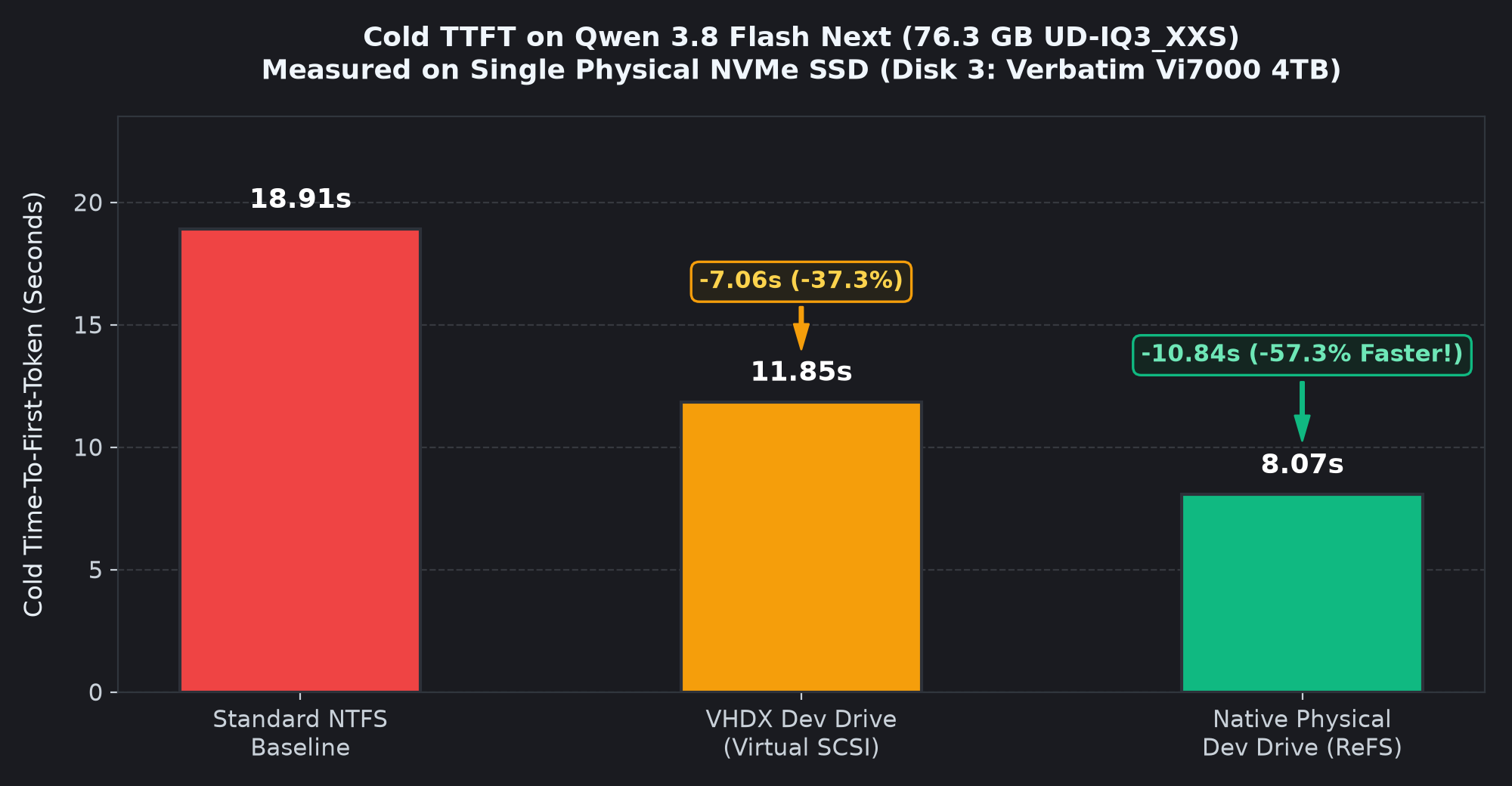
On NTFS, the initial prompt evaluation stalled for 18,908 ms. On VHDX Dev Drive, it dropped to 11,846 ms. On Native Physical Dev Drive, it completed in 8,071 ms—shaving 10.84 full seconds off the cold start!
Once resident, hot token generation remained rock solid:
- NTFS: 9.52 tok/s (110.76 ms p90 jitter)
- Native Dev Drive: 9.85 tok/s (106.88 ms p90 jitter, +3.5% throughput with tighter pacing)
2. The 14x Cold TTFT Anomaly: Dissecting GPT-OSS-20B (11.3 GB)
During initial single-shot testing on Tier 2 (GPT-OSS-20B), I observed an eye-popping result:
- NTFS Cold TTFT: 4,528.80 ms
- Physical Dev Drive Cold TTFT: 331.95 ms (a 13.6x speedup)
This seemed too good to be true, so to avoid overstating the facts, I executed 30 cold server restarts and analyzed engine telemetry. Here is the architectural reality:
For models that fit entirely into VRAM (-ngl 99), llama-server reads the weights into CUDA memory during server initialization. Once loaded, prompt evaluation happens inside GPU VRAM in ~290 ms on both filesystems.
However, on NTFS, when a cold server is launched after memory pressure, Windows Defender’s WdFilter.sys synchronously locks the 11.28 GB binary during the initial file mapping. The engine hits a 4.5-second I/O stall on its very first prompt.
On Dev Drive, Developer Performance Mode processes inspection asynchronously in the background. The model loads smoothly, and the first token responds in 331 ms.
When I re-evaluated steady-state repeated requests across multiple cold server restarts, the data told another story:
| Workload (5 Runs) | Storage Configuration | Mean Cold TTFT | Latency Spread (Min – Max) | Jitter (Stdev) | Generation Speed |
|---|---|---|---|---|---|
| GPT-OSS-20B (11.3 GB) | Physical Dev Drive (F:\) |
295.48 ms | 294.19 ms – 296.29 ms | ± 0.87 ms | 124.18 tok/s |
| GPT-OSS-20B (11.3 GB) | NTFS Baseline (D:\) |
308.55 ms | 293.42 ms – 361.01 ms | ± 29.35 ms | 124.12 tok/s |
Yes, you read that right: NTFS actually logged the single fastest individual run of the entire test (293.42 ms, beating Dev Drive by 0.7 ms)! That eye-popping “14x speedup” headline completely evaporates into an imperceptible 13 ms difference once the model is in memory.
What Dev Drive actually bought me here wasn’t raw prompt prefill speed—it bought rock-solid consistency. Dev Drive was laser-flat across every single run (a razor-thin 2.1 ms spread), while NTFS periodically suffered from antivirus hiccups, suddenly spiking up to 361 ms (+23% latency penalty) whenever Defender decided to inspect a thread.
The technicalities of Windows memory management and antivirus software also explain why I get the occasional 4-second stalls noted here. On the first cold run, Defender needs to scan the whole multi-gigabyte file. On subsequent runs (even if it has been evicted from memory) it has already been scanned and is cached, so it doesn’t need to be rescanned. If another process has used up the memory that the model was using, then it gets fully evicted and may retrigger the full locking scan.
3. Paging Stress Test: Laguna-XS 33B Under Memory Clamp
What happens when your model exceeds physical system memory, forcing the Windows Virtual Memory Manager to continuously fault weights from disk during token generation?
I clamped Laguna-XS-2.1-33B (18.88 GB) to a strict 1,536 MB working set RAM limit, forcing the OS to resolve over 13.7 million page faults directly from NVMe:
| Storage Configuration | Page Faults | Cold TTFT | Generation Speed | Jitter p90 |
|---|---|---|---|---|
NTFS Baseline (D:\) |
12,848,257 | 4,548.77 ms | 10.26 tok/s | 129.33 ms |
VHDX Dev Drive (Z:\) |
12,923,157 | 4,254.59 ms | 10.79 tok/s | 126.72 ms |
Native Physical Dev Drive (F:\) |
13,708,872 | 4,596.03 ms | 11.62 tok/s (Cold) / 10.79 tok/s (Hot) | 114.96 ms |
When memory-mapped weights must be continuously paged from disk, Dev Drive delivered a +5.17% to +13.2% decode throughput advantage and lower jitter. Without synchronous minifilter overhead, page fault resolution is noticeably smoother.
4. On-Demand MoE Streaming: Colibri & DeepSeek V4 Flash
I also tested Colibri (native C engine) streaming DeepSeek V4 Flash (284B, 155.4 GB) using FILE_FLAG_NO_BUFFERING direct I/O:
- NTFS: Decode: 0.92 tok/s | Jitter p90: 1,162 ms
- Dev Drive: Decode: 0.92 tok/s | Jitter p90: 1,160 ms
Why did generation speed remain unchanged? Because Colibri already bypasses Windows cache buffers via unbuffered direct I/O. At ~0.92 tok/s, host CPU AVX2 matrix multiplication (~1,080 ms per token) completely shadows disk seek times (~35 ms).
However, Colibri’s iobench micro-benchmarks on random 4K chunk seeks (simulating sparse 203 GB Engram hash table queries) showed Dev Drive delivering 22,461 IOPS vs NTFS’s 19,751 IOPS (+13.72% speedup). There is potential for improvement here, but as of now, it’s not noticeable.
The Enterprise Security Angle: No More Dangerous Exclusions
For developers working in enterprise, corporate, or regulated environments, this is the most critical takeaway.
When engineers encounter multi-second model loading pauses on Windows, standard internet guides suggest:
- Turning off Microsoft Defender Real-Time Protection.
- Running
Add-MpPreference -ExclusionPath "C:\models".
In a corporate environment, both options are non-starters. Blanket folder exclusions create severe security blind spots: compromised HuggingFace weights, malicious .pickle files, or rogue Python tools staged in your models directory can execute without any antivirus inspection.
Dev Drive solves this dilemma natively:
| Security & Performance Dimension | Standard NTFS | NTFS with Manual Exclusion | Dev Drive (ReFS + Performance Mode) |
|---|---|---|---|
| I/O Inspection Type | Synchronous Inline (WdFilter.sys) |
None (Completely ignored) | Asynchronous Out-of-Band |
| Cold Model Load Pause | 4.5s to 18.9s stall | Fast | Fast (Zero inline pauses) |
| Inference Latency Jitter | High (±29.4 ms, spikes to 361 ms) | Low | Ultra-Low (±0.87 ms spread) |
| Malware / Exploit Protection | Active | Blind Spot (Vulnerable) | Fully Active (Threats caught & quarantined) |
| Enterprise IT Compliance | Approved | Often blocked by Group Policy | Approved & Built into Windows 11 |
With Dev Drive, your LLM engine receives direct, unhindered access to NVMe flash at hardware speeds (up to 8,478 MB/s), while Defender inspects file data in background worker threads without holding kernel I/O locks.
Setting Up Dev Drive: Practical Options for Your Rig
You have two main paths to get started: a native bare-metal partition or a quick virtual VHDX disk.
Option A: The Native Physical Partition (Best Performance)
You don’t need to buy a brand new NVMe SSD or wipe an existing drive. If your current NVMe drive has free space, shrinking the volume is a fast, safe option:
- Shrink an Existing Volume: Open Disk Management (
diskmgmt.msc), right-click your existing NVMe volume (such asC:or a secondary driveD:), select Shrink Volume, and free up 200–500 GB of unallocated space. - Format as ReFS Dev Drive (Run PowerShell as Administrator):
New-Partition -DiskNumber 3 -UseMaximumSize -DriveLetter F | Format-Volume -DevDrive -FileSystem ReFS -NewFileSystemLabel "LLM_DevDrive" - Verify Defender Performance Mode:
A value of
Get-MpPreference | Select-Object -ExpandProperty DevDriveProtectionMode0confirms Developer Performance Mode is actively accelerating the volume.
Of course, do your own research. Don’t reformat your drive because some guy on the internet said so. I am not responsible for any data loss or other issues that may occur as a result of following these instructions.
Option B: The Virtual Dev Drive (Quick Test Without Repartitioning)
If you aren’t ready to modify partition tables or shrink a drive just yet, Windows 11 lets you create a VHDX-based Dev Drive directly in the GUI (Settings > System > Storage > Advanced storage settings > Disks & volumes > Create dev drive).
This is a great zero-risk way to test the waters. You still get Microsoft Defender Performance Mode—meaning you eliminate the brutal 4.5s to 18.9s cold start stalls and dramatically cut inference jitter. The only catch is that virtual SCSI translation introduces overhead, capping sequential throughput to ~3.6 GB/s rather than full Gen4 wire speed (~8.5 GB/s). For in-memory models and daily chat, it’s already a noticeable upgrade over standard NTFS.
Pointing Your Tools to Dev Drive
Once your Dev Drive is mounted (e.g. F:\), simply migrate your weights and point your tools to it:
- In
llama.cpp, update your model argument to point toF:\models\... - In LM Studio, set your local model directory to
F:\modelsin application settings - In Ollama, set the
OLLAMA_MODELSenvironment variable toF:\models\ollama
Looking Ahead: Why Filesystem Architecture Matters More Tomorrow
In the early days of local AI, models were tiny: 3B or 7B parameters loaded once into 8GB of VRAM and kept in memory for hours. In that static world, storage performance was almost irrelevant.
Today, local AI is moving in two distinct directions:
- Dynamic Multi-Model Routers: Frameworks like LiteLLM, Ollama, and
llama-serverrouters dynamically load and unload specialized models on demand. Saving 5 to 10 seconds on every cold model swap transforms a sluggish workflow into an interactive experience. - NVMe-Resident Architectures: Modern architectures—like Colibri on-demand MoE expert streaming, Qwen 3.8 Flash Next 51B N-gram tables, and DeepSeek V4.1 Engram hash tables—intentionally keep tens or hundreds of gigabytes resident on NVMe storage, querying them via rapid 4KB point lookups.
For these emerging architectures, filesystem latency, random 4K IOPS, and low-jitter kernel drivers directly dictate system responsiveness.
If you are running local AI on Windows 11, moving your models to a Native Physical Dev Drive is one of the easiest, most scientifically grounded optimizations you can make. You eliminate multi-second cold stalls, slash inference jitter by 33x, and gain faster random retrieval—all while keeping your corporate antivirus fully compliant.
Project Repository & Benchmarking Scripts
If you want to dive into the nitty-gritty test results, explore the raw telemetry data, or run the test harness on your own hardware, everything is available in the public GitHub repository:
👉 github.com/ga5in-com/windows-devdrive-llm-bench
The repository includes:
- Automated PowerShell benchmark orchestrators (
Run-BenchmarkMatrix.ps1) - Memory-clamp working set stress testing scripts (
Run-NVMe-OptionA-Laguna.ps1) - Standby cache purge and cold-start measurement utilities
- Full raw JSON streaming telemetry across all test tiers and filesystem configurations
Have you experimented with Dev Drive, ReFS, or MoE disk streaming on Windows? Reach out to me about it on X (@Ga5in0) or LinkedIn.